How each part of your Mole works, and the bits that aren't obvious from
looking at it. Anything marked PRO needs a Pro plan.
Start here
How Sponsor Mole works
Sponsor Mole does four jobs, in roughly this order:
Finds the right person. You give it a brand; it finds who handles
sponsorships there, with a verified work email and LinkedIn where they exist.
Works out what to pitch. It researches what the brand is doing right
now and turns that into specific angles, rather than "I love your product".
Writes the pitch. Built on one chosen angle, in your voice, with your
proof.
Keeps you honest afterwards. The tracker remembers who you contacted,
when to follow up, and when a quiet brand is worth another try.
The single highest-value thing you can do first is
Train your Mole. Everything it writes about you is grounded in what
you put there, so ten minutes on that form improves every pitch afterwards.
Finding people
Contact search
Two ways to search, both from Contact search:
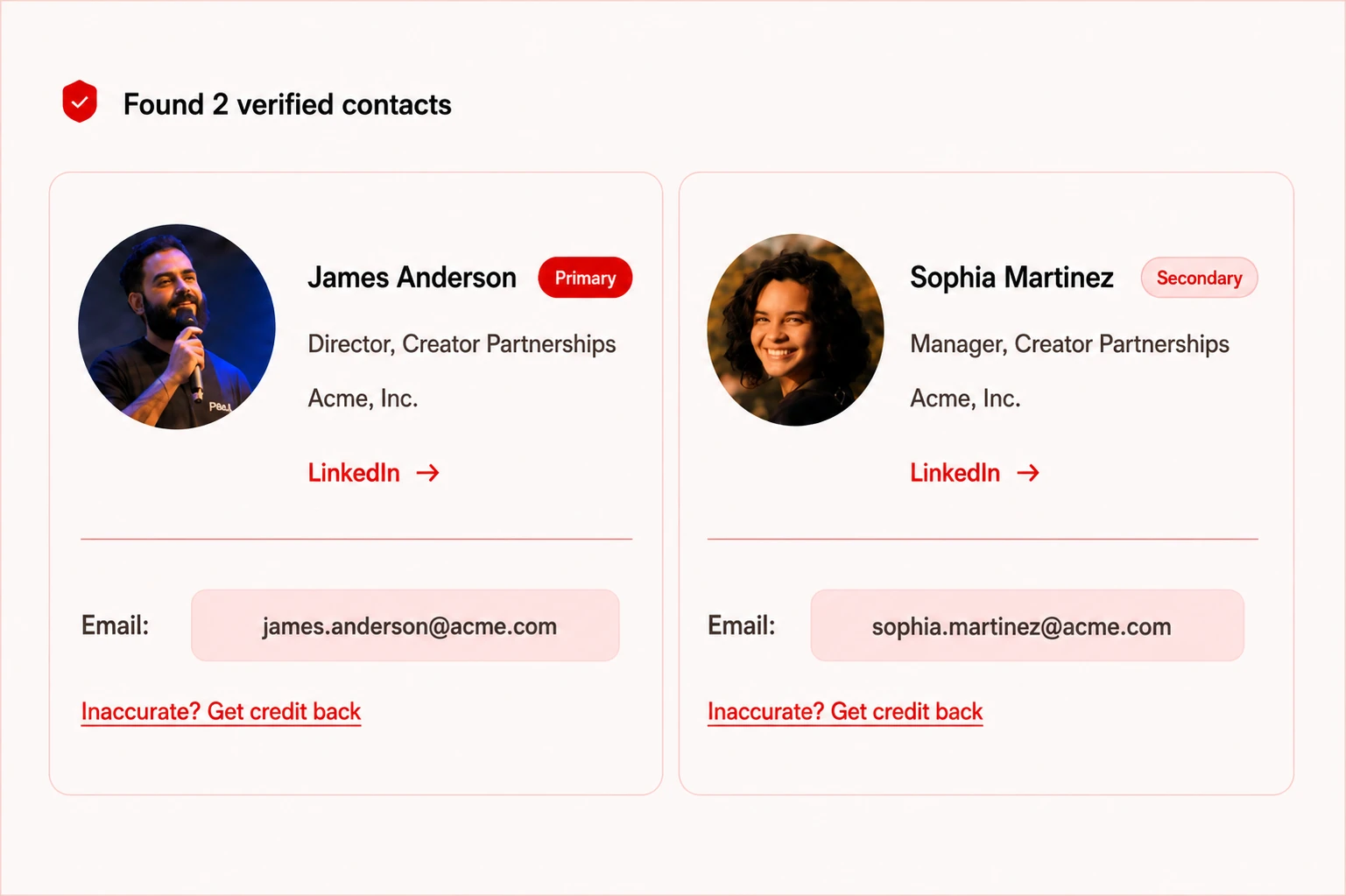
By brand. Type a brand name. Your Mole works out who owns sponsorships
or influencer marketing there and returns the best matches with titles, LinkedIn
profiles and verified work emails.
By name. If you already know who you want, search their name and the
company to get their verified work email.
What a search returns: the people who own sponsorships, their verified work email, and a LinkedIn link. Illustrative — Acme, Inc. and everyone in it are made up.
Big brand, or a brand owned by someone bigger
Sponsorship decisions often sit with a parent company, so a search for a sub-brand may
return contacts at its owner. That's deliberate — pitching the person with the budget
beats pitching the brand page.
If a contact is wrong
Use Report an inaccurate contact on the contact. Tell us what was off —
bounced, left the company, wrong role — and the search credit goes straight back. You can
do this up to 10 times a month.
Searches cost a credit; opening your own history doesn't.
Re-opening a brand you already searched is free, so there's no reason to hoard.
Nothing to remember to save
History & saved work
Every search you run is saved automatically under History, grouped by
brand. Each brand card holds the contacts you found, any research you ran, and any pitches
you generated — so a brand you looked at three weeks ago is one click away, with no credit
spent to look again.
From a brand card you can jump straight back into a contact search, run research, or add
the brand to your tracker.
If a brand isn't relevant, hide it and it stops appearing in suggestions and your weekly
email.
Do this first
Train your Mole
In Account → Settings → Train your Mole. This is the profile every
pitch is written from, and
it matters more than any other setting.
Field
What it's for
Content niches
Steers who gets targeted in contact search
and which brands get suggested to you.
Off-limits
Topics you'd never pitch. Kept out of your
pitches and out of your weekly email.
Additional context
Who you are, what you make, who watches,
your formats, your proof points. This is background — your Mole grounds every
claim about you in it and draws on whatever is relevant to each brand.
Always mention
One line that must appear in
every pitch. This is the difference from Additional context: that's material to
draw on, this is a requirement.
Sign off pitches as
Used verbatim at the bottom of every
pitch — your first name, or a business name if you pitch as a company.
Which box does my $5M in GMV go in?
Always mention. A credential you want in front of every brand belongs
there — put in something like over $5M in lifetime GMV on TikTok and it will
be worked into each pitch, usually next to your proof where a number like that lands
hardest. Put it only in Additional context and it will appear sometimes, because that field
is background rather than an instruction.
Keep Always mention to one line. Two or three competing claims dilute the pitch and start
fighting the angle for space.
If you pitch for more than one thing
Profiles
Most people never need these. If you only pitch for one channel or one brand, the
account you already have is the only profile you need and you can skip this.
Profiles are for when you have separate assets or properties you pitch
differently — a main channel and a second one in a different niche, a
podcast alongside a YouTube channel, a personal brand alongside a business. Up to
five, in Account → Settings → Profiles.
Each profile is its own pitching identity. It has its own connected channel, its own
niches, and its own Train your Mole context — so research and
pitches come out in the right voice for the right audience instead of averaging your
properties together.
Per profile
Shared across the account
Connected channel
Yes — connect it from inside the
profile you want it on
Niches & Train your Mole
Yes
Weekly research email
One per profile, with its own
on/off switches
Contact search credits
One pool for the whole
account, however many profiles you have
Deal tracker & history
One tracker. Every
row is tagged with the profile that created it, and you can filter by profile
Switching
Whichever profile you are in is the one your searches, research and pitches are written
from, and it is named at the top of the Account menu with its channel’s picture, so
you can tell at a glance. Switch in Account → Settings →
Profiles.
A new profile starts empty
Deliberately. The only two things carried over are the ones that are facts about
you rather than about the property: where you look for brand contacts, and the
name you sign off pitches as. Everything else — the channel, the niches, the
context — is what makes it a separate profile, so you fill it in for whatever that
profile represents.
Weekly emails
A profile gets its own weekly research email once it is actually set up, meaning it has a
channel connected or context written. Blank profiles do not email you. Each one has its
own switches on the Weekly emails page, so you can have research for one
property and not another — the page names which profile you are changing.
Removing one
Removing a profile leaves its work alone. Saved contacts, research, pitches and deals
keep their tag and simply stop being offered as a filter — they are your work, and a
tidy-up of your profile list should not bin them.
What to pitch
Brand research & pitch angles PRO
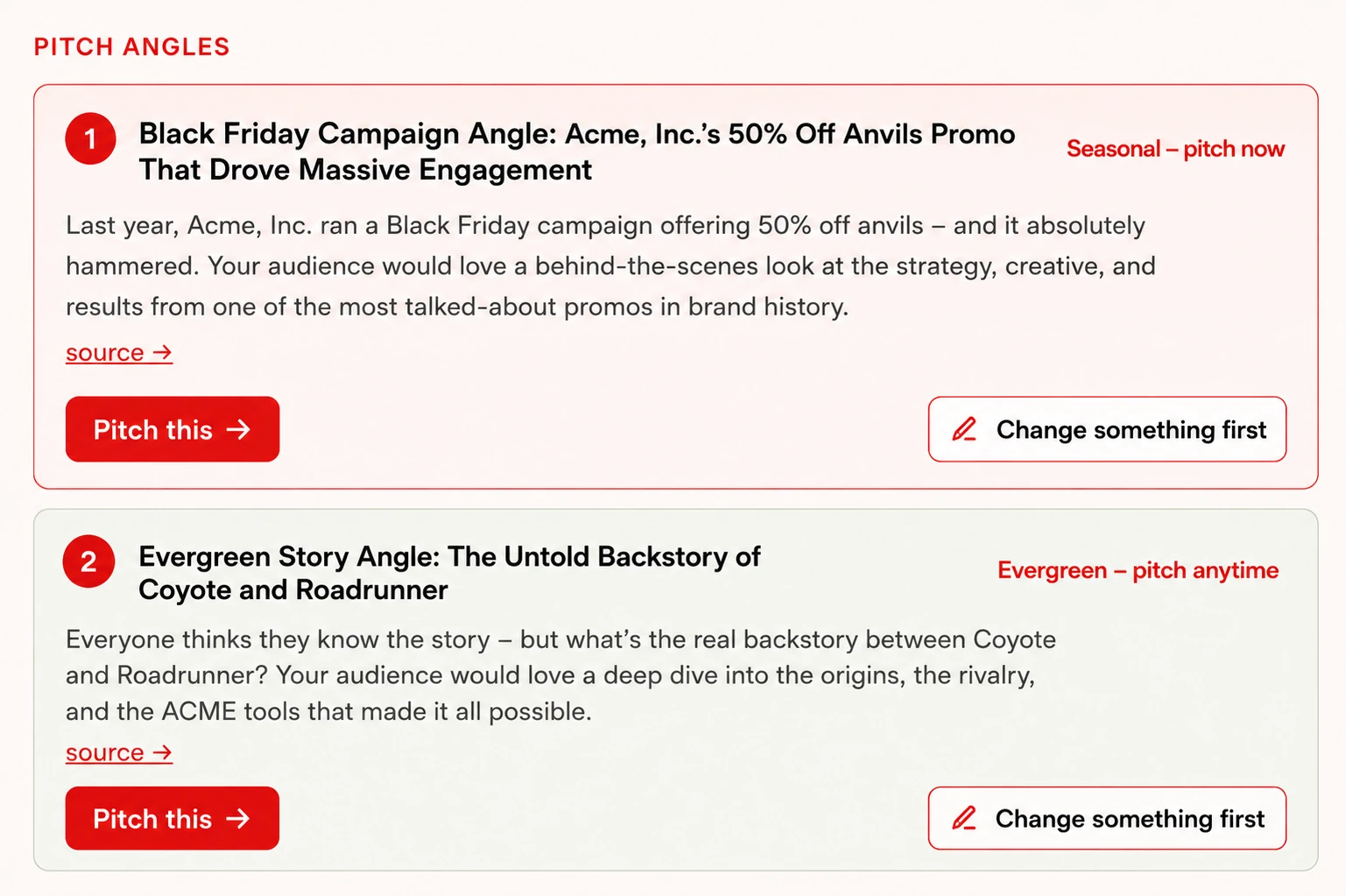
Research a brand and your Mole comes back with up to five pitch angles,
each built on something specific and checkable it found. They come in a fixed order so you
learn where to look:
Angle
Built on
Seasonal
Something they ran this time last year, so you
can get into this year's version before placements lock.
Recent
Something dated that already happened — a launch, a
campaign, or a sponsorship they actually paid a creator for.
Evergreen
The standing case for your audience and their
product, for weeks when there's no news hook.
Audience
Who the brand sells to, and why those are the
same people who watch you.
Job posting
A role they're hiring for whose outcome you
could deliver sooner as a creator.
Each angle carries its type, the reason it works now, and a source link to the finding it came from. Illustrative example.
Every angle is anchored to a real finding with a source link, so you can read the thing it
came from before you pitch it. If the research is thin for a brand, you'll get fewer
angles rather than invented ones.
Pitch something custom
Below the researched angles there's Pitch something custom. If you know
something your Mole didn't dig up — a launch, a campaign, a moment, or just the direction
you want to take — type it there and the pitch is built on your angle, with the
research still supplying the supporting detail. Your angle leads; it doesn't get swapped
for one of ours.
The "Why now?" box underneath is optional. It's worth filling in when how you know
matters, or when the timing is the point.
The pitch itself
Writing your pitch PRO
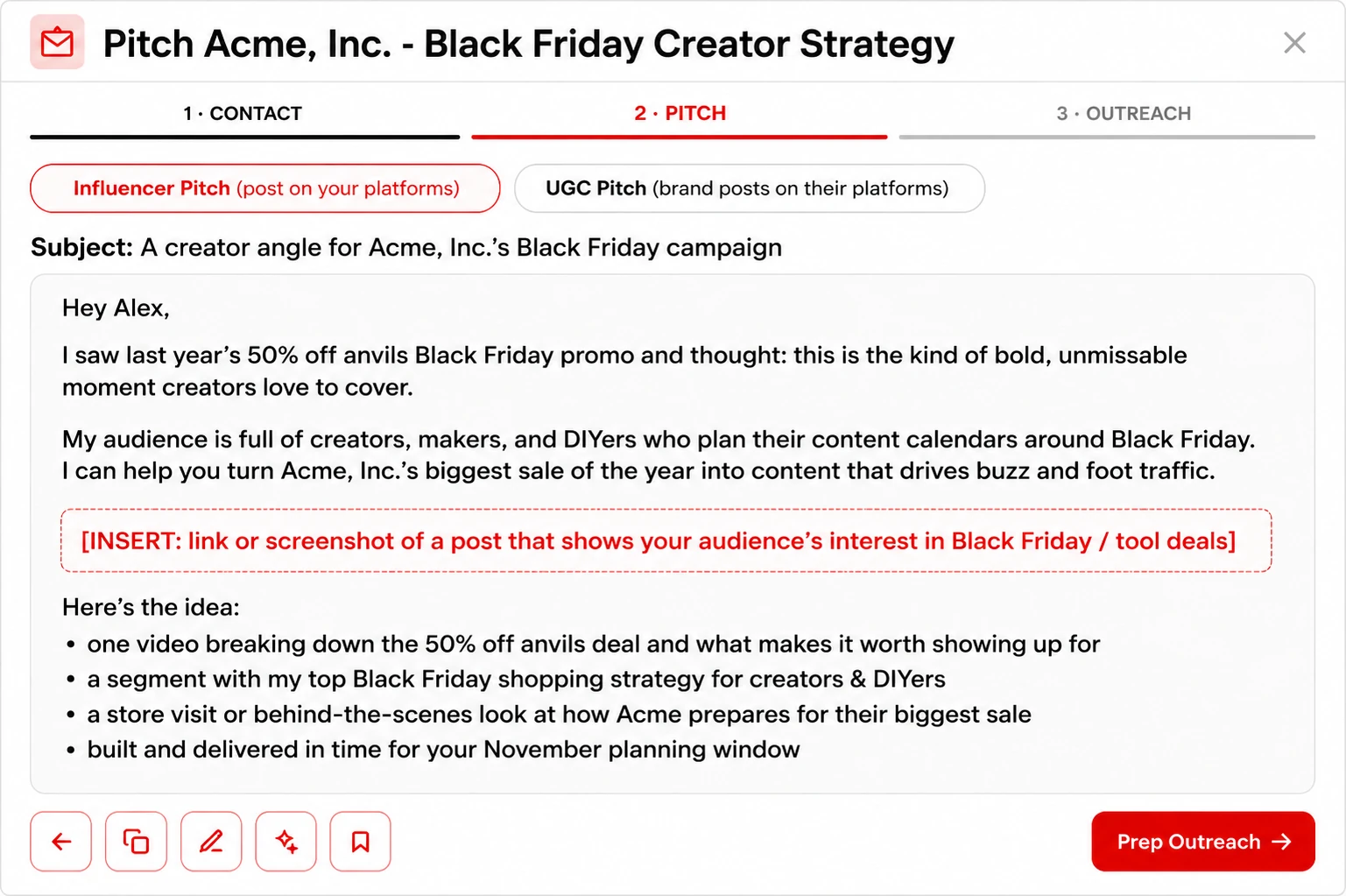
Pick an angle and your Mole writes two versions:
Influencer pitch — a sponsored video or integration on your own
channel.
UGC pitch — content the brand publishes on its own channels
and paid ads.
They're genuinely different pitches, not the same email retitled. The influencer version
offers your audience; the UGC version offers the work, because a UGC buyer isn't paying for
your reach.
Step 2 of the flow. The tabs switch between the influencer and UGC versions; the red bracketed line is a placeholder for you to fill in. Illustrative example.
Placeholders are deliberate
Where you see [SCREENSHARE: "video title"] or a bracketed instruction, that's
a stage direction for you, not a mistake. Your Mole won't invent a video you didn't make or
a result you didn't get — it leaves you a marked slot to drop the real thing into.
UGC deliverables are licensed, never owned
The UGC pitch always frames usage as a term-limited licence —
"licence to run across your site, socials and paid ads for X months" — and leaves the X for
you to negotiate. It will never offer a brand ownership of your footage. Handing over
perpetual rights to your own work is the most expensive thing you can accidentally concede
in a first email.
Changing something
Use Change something first to adjust wording, length or emphasis. If you
want the pitch to be about a different thing entirely, that's a new angle rather
than a tweak — use Pitch something custom.
The part people skip
Sending & following up
Step 3 of the pitch flow is Prep outreach: the subject line, the email,
the contact's verified address, and what to do if they don't reply.
Record it as a video pitch
Before you send anything, read your script on camera, screen-sharing the video or post
it refers to. Keep it under two minutes. Your phone is fine — or use a tool like
Tella
(affiliate) or Loom. Don’t read it word-for-word: the script is your outline, so
speak naturally.
Why a video pitch? Brands are inundated with terrible AI slop email
pitches right now. A short, specific video pitch is the best way to cut through the noise
and get a response.
A sample video pitch — click to watch the full example.
Tell your Mole when you've sent it
Hit "I've sent it" on that step. This is the one thing worth not
skipping, because it does two jobs:
Starts your follow-up reminders — day 5, 11, 18 and 32 after the
pitch.
Keeps the brand on your tracker whether or not they ever reply, so you have a
record of everyone you've contacted rather than only the deals that landed.
Wrong person? Go back to step 1 and pick someone else.
Your draft is kept and simply re-addressed — the pitch is written from the brand and the
angle, not the person, so you never have to regenerate it.
Logging a pitch you sent a while ago
Open the deal and fill in Pitch sent/Inquiry received in the Timeline.
It takes the real date, so a pitch you sent three weeks ago picks up its schedule from
then rather than from today. A card that's waiting on that date says so.
Getting into the inbox
Email deliverability
A pitch that lands in spam is worse than one you never sent — you think you are
waiting on a reply that was never read. Corporate mail filters have got considerably
stricter, and a first email from a sender nobody at the company recognises is exactly
what they are built to catch. A few habits keep you out of the junk folder.
Test your own domain first
Before you send anything at scale, run your sending domain through
MXToolbox’s
deliverability check. It tells you whether your SPF, DKIM and DMARC records are set up
properly and whether your domain appears on any blocklist. If those records are missing or
wrong, nothing else on this page will help — filters are judging your domain before
they read a word you wrote.
One link, and nothing else
Every link and every image is another thing for a filter to weigh, and a first-contact
email stuffed with both looks like marketing because it is shaped like marketing. We
recommend a single link, pointing at your organic work — the video,
the post, the piece that proves you make the thing you are claiming to make. One link that
earns the click beats five that dilute each other.
This is also why the pitches Sponsor Mole writes are plain text with no images. It is not
a limitation; it is the format most likely to arrive.
Do not attach your media kit
However good it is, leave it off the first email. Many corporate mail systems block
attachments from unknown senders outright, and some quarantine the whole message
rather than stripping the file — so the attachment does not just fail to arrive, it
takes your pitch with it. Nothing bounces and nothing tells you.
Why we push video pitches
Everything above is about surviving a filter, which is a low bar to clear and a poor way to
stand out. Brands are inundated with AI-written email right now. A short video of you
talking about their actual campaign is the thing that gets a reply — see
Sending & following up for how we suggest recording one.
Where deals actually get won
The deal tracker
Available on every plan, because dropping the ball on admin costs more deals than bad
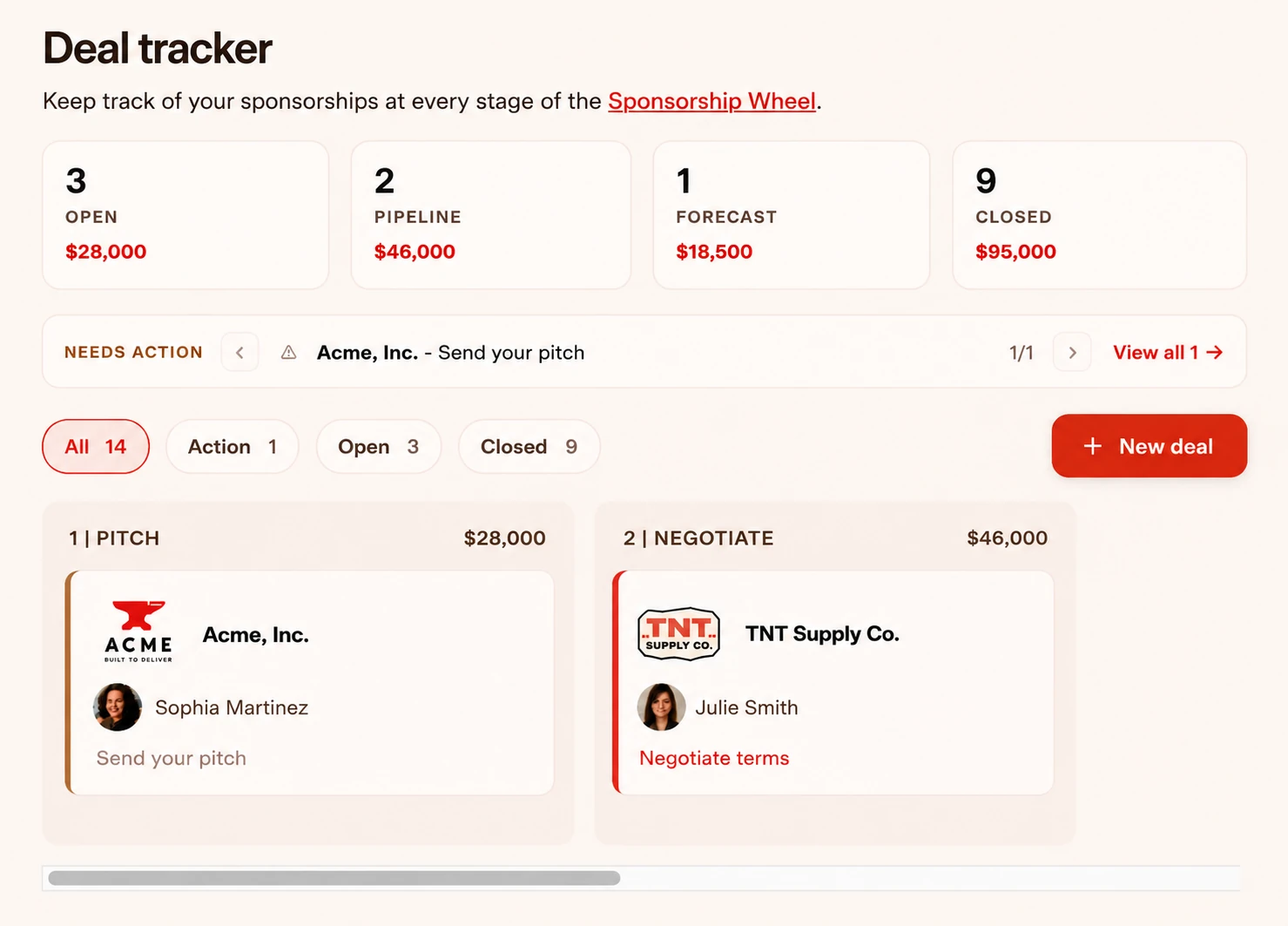
pitching does. Each deal moves through eight stages — pitch, negotiate, contract, concept,
production, feedback, live, invoice — plus four ways to finish: Deal Completed,
Fell Through, Circle Back, Brand Ghosted.
The board: totals across the top, whatever needs action next, then your deals by stage. Illustrative — these brands and contacts are made up.
Next action
Every card shows one Next action with a date, and the board and reminder
emails always agree with it. Late items are flagged; a card waiting on a date you haven't
entered says which date it needs.
Follow-ups
After a pitch: day 5, 11, 18 and 32. After an invoice: 5 days, then 3, then a nudge a week
before it's due. Mark one Done and the next is scheduled.
Logged one by mistake? Undo last sits next to Done. It puts the count
back, removes the extra pitch it counted, and recalculates from the original date. It stays
available even after you've dismissed the reminder or moved the deal on.
When a brand goes quiet
Move the card to Brand Ghosted. After 60 days it comes back with
"Re-pitch this brand" and a button to research a fresh angle. No answer isn't a no, and two
months is usually long enough for whatever was going on at their end to have changed.
Contracts and paperwork
Upload a contract and your Mole reads it, pulls out the dates, fee, exclusivity and usage
terms, and fills in the Timeline for you. Exclusivity and paid-usage windows are tracked
from your go-live date, so you can see when a term actually expires rather than guessing.
Bringing in an existing pipeline
Already tracking deals in a spreadsheet? Import a CSV from the tracker — you'll get a
preview of what will be created before anything is written.
Brands you didn't think of
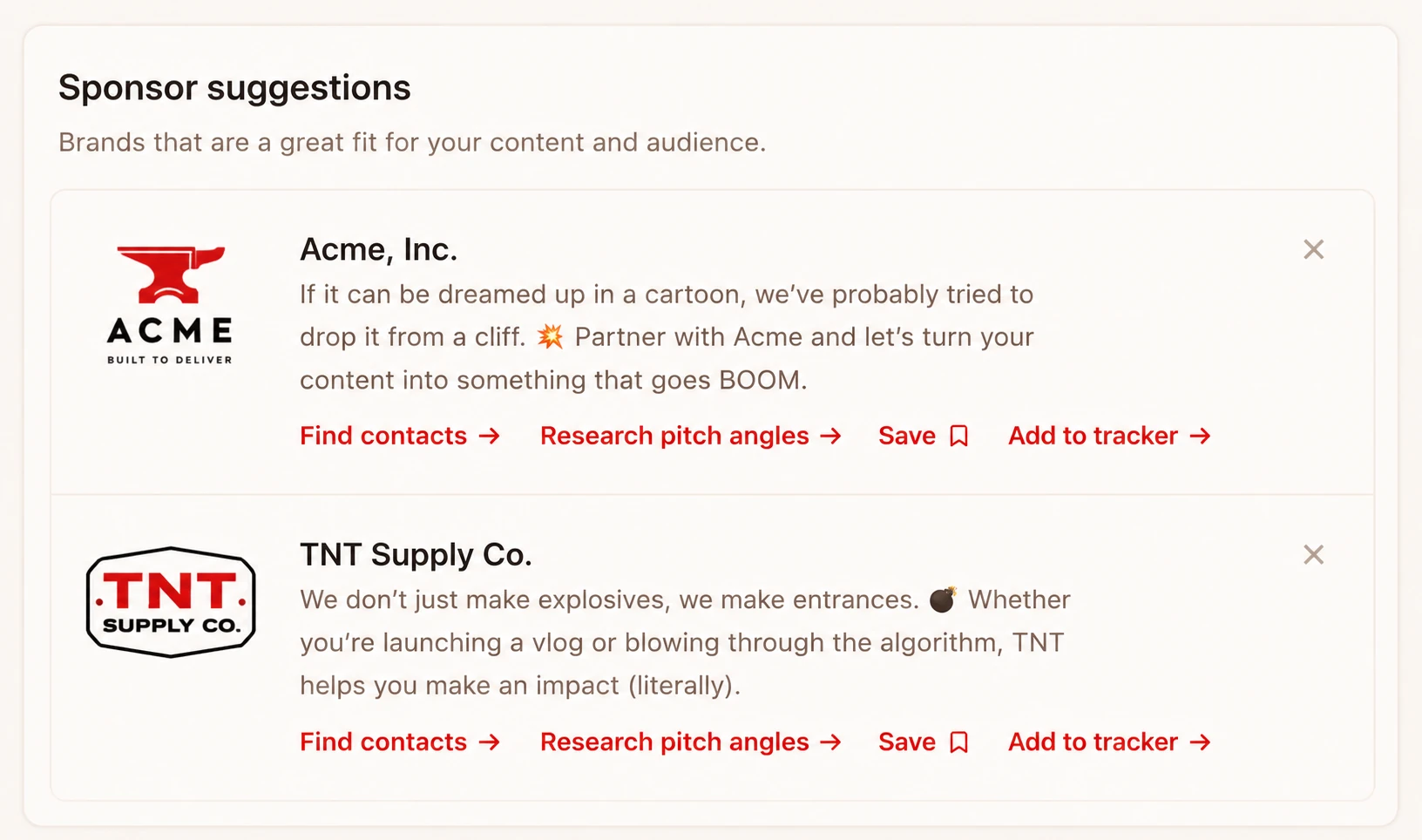
Sponsor suggestions PRO
Suggest brands for me to pitch proposes brands that fit your niches and
have a real track record of paying creators. Suggestions avoid brands you've hidden, and
won't recommend a brand a creator is already working with when we can tell.
Each suggestion comes with the next step attached — find contacts, research angles, save it, or put it straight on your tracker. Illustrative example.
The more complete your profile, the better this gets — it's reading
your niches, your context and your audience, not just a category.
Delivered to you
Weekly research emails PRO
Once a week your Mole does the digging on its own and emails you brands worth
pitching, with the angle already worked out and the contact attached. It is the
same research you would get by sitting down and asking for it — it just
arrives without you remembering to.
What is in it
Three sections, each with its own switch, on the Brand research
page:
Suggested sponsors — brands picked from your niches,
keywords and search history. This one needs niches to work: with none saved there
is nothing to suggest from, and the switch says so rather than silently sending
you an empty email.
Live campaigns on YouTube — brands actively sponsoring
creators in your niche right now, which is the shortest path to a yes: they have
already decided to spend.
Activity recap — your recent searches and deal alerts,
and what is waiting on you in the tracker.
One per profile
Each profile gets its own weekly email with its own
switches, written from that profile’s niches and channel — so a podcast
and a YouTube channel are researched separately instead of averaged together.
What it will not send you
Off-limits topics from Train your Mole never appear, and
neither do brands already in your tracker — the email is for brands you are
not yet talking to.
Every brand in it is a link straight into the product: pitch it, explore other
angles, or tell your Mole to stop showing you that brand.
Making it easy to say yes
Deck builder PRO
The moment a brand says “send me something”, this is what you send. It
turns what you and the brand actually discussed into a proper proposal deck —
the brand’s goals, what to expect, packages and pricing, how success gets
measured, and how to reach you.
Feed it the conversation, not a form
The best input is a transcript of your call with the brand, or the
email thread. Paste it in whole. Notes work too: what they said they want, budget
hints, deliverables you discussed, deadlines.
The more of the real conversation goes in, the less the deck reads like a template
— it argues back with what they told you they were trying to do, in
their words, which is the part a generic media kit can never do.
Pricing is yours to set. Say what the packages
should be — “Package 1 at $5K, Package 2 at $10K” — and they
come out that way. Your Mole is not guessing at your rates.
What you get back
A finished deck you can download as a PDF or a
PowerPoint — the PowerPoint opens in Keynote and Google Slides
too, so you can change a line without coming back here.
If something needs changing, use Want changes? and say what.
Revisions are unlimited.
Attach it to the deal
From the proposal itself you can attach it to a deal in your
tracker, which is where a proposal stops being a file in your
downloads folder and becomes a deal you are actually tracking. If a deal for that
brand is already open, it is offered by name.
Post-campaign reports
The other half of the job: wrapping up a finished campaign with the posts that went
live, the numbers they did, and a pitch for the next activation while the results are
still warm. If you built the proposal here, the goals it was sold on fill themselves
in — so the report is judged against what was actually agreed.
You don’t fill in a form
Paste everything you have into one box, in any order: the analytics
export, the email thread, DMs, your own notes, the links to what went live. Your Mole
reads it, fills the report out, and tells you plainly what it still needs — the
numbers, a link, whatever is missing.
Everything it worked out is then editable, because a sort that guessed wrong should
cost you seconds, not turn up in a deck you were about to send.
Screenshots are the exception, and worth the minute they take. Drop
one on each post, and add any comments or DMs worth showing. Nothing proves impact
like someone else’s words, and a picture of a Reel and a picture of a DM look
identical to a machine — so those you place yourself.
You can ask your AI assistant for one too: paste the same
pile into the chat and it will come back asking for whatever is missing, then hand you
a link to the finished report.
Plans & money
Plans, credits & billing
Standard
Pro
Live contact searches / month
25
100
History, saved contacts
✓
✓
Deal tracker & reminders
✓
✓
Train your Mole
✓
✓
Brand research & pitch angles
—
✓
Pitch writing
—
✓
Sponsor suggestions
—
✓
Weekly research emails
—
✓
Deck builder
—
✓
Search credits
Credits reset each billing month, on your own billing date rather than the 1st. Opening
something from your History never costs a credit — only a fresh live search does. A
reported bad contact is credited straight back.
Changing plan
Change plan from Account → Settings → Manage subscription.
You’ll see the exact figures before you confirm.
Upgrading takes effect immediately. You're charged once: the new plan's
price, less credit for the unused part of the plan you're leaving.
Your billing date moves when you upgrade — you're starting a fresh
term, so your next payment is a full month or year from the day you upgrade. The
confirmation screen tells you the new date.
Downgrading takes effect at your renewal date. Nothing is charged
today and you keep everything on your current plan until then. There's no refund for the
part of the term you've already paid — you keep the plan instead.
For example. You're on Pro monthly at $99 and upgrade to
Pro annual ten days into the month. Twenty days are unused, so you're credited $66. Pro
annual is $999, so you pay $933 today, and your next payment is one year
from that day.
Going the other way: on Pro annual with six months left, switching to Standard changes
nothing today — you stay on Pro until your renewal date, and start on Standard from
there.
Launch and promotional pricing applies to new subscriptions. An in-app upgrade is charged
at standard plan pricing, so if you signed up on a promotion and want it carried over, email
mole@creatorwizard.com before upgrading and we'll
sort it out.
Invoices, receipts and your card live in the billing portal, reached the same way.
If someone helps you pitch
Team PRO
Give up to two other people their own sign-in to your account — a
manager, an assistant, an agency contact. In Account → Settings →
Team. They get their own magic-link sign-in with their own email address; you
never share your login.
Add someone and we email them a link to get in. If that email does not arrive, they can
enter their own address on the normal sign-in page and we will send them a fresh one.
What they can do
Everything the work needs: contact search, brand research, writing and editing pitches,
the deck builder, and the full deal tracker. From your account, so their research and
their deals land on your board rather than in a copy of it.
What they cannot do
Off limits to team members
Why
Billing, your plan, and buying credits
Money stays with the account
owner.
Connecting or disconnecting a YouTube channel
It decides what every pitch
on the account is written from.
The team list itself
Otherwise two seats quietly becomes any number of
them.
Coach access, and signing every device out
Standing permissions over the
account are the owner’s to grant.
Those controls are not greyed out for them — they are simply not shown, so nobody
clicks something that was never theirs.
Credits
Searches a team member runs come out of your monthly credits. There is
one pool per account, not one per person.
Removing someone
Immediate. Their access is cut off on their very next click, not at the end of their
session — you do not have to wonder how long a sign-in stays alive. Their work stays
on your account.
Team rides on your subscription: if the account stops being Pro, members cannot sign in
until it is again. You can still remove them while it is on Standard, so nobody is
stranded on your account with no way to clear them.
Claude, ChatGPT and friends
Your AI assistant PRO
You can connect your Mole to an AI assistant and just ask it for things in plain
English. It is the same account, the same credits and the same tracker — a second
door into the product, not a copy of it. Anything you do through the assistant shows up
in the dashboard, and anything you do in the dashboard is there when you ask.
Set it up in Account → Settings → AI / MCP.
Add the link it gives you as a custom connector, and your assistant will bring you back
here to approve it.
Sponsor Mole writes the work, not the assistant. When
you ask for a pitch or a proposal, your Mole generates it with your niches, your channel
and your Train your Mole context — the assistant just passes it along. That is
deliberate: a pitch written by a general-purpose model knows none of that, and it
shows.
Finding brands worth pitching
Who should I be pitching right now?
Find me sponsor leads in my niche
Research Hostinger and give me pitch angles
What do we already know about Bose?
What did my Mole turn up this week?
What we already know is free and instant — it reads research your Mole
has already done rather than running it again.
Getting the contact
Find me the right person to pitch at Hostinger
Who buys creator sponsorships at Bose?
This is the one that spends a search credit, exactly as it does in the
dashboard. Your assistant is told to confirm before repeating it and never to run it
down a list of brands — but it is worth knowing that is the expensive one, so you
can ask deliberately.
Writing the pitch
Write me a pitch for Hostinger
Draft the pitch for that second angle
Building a proposal from a call
This is the one worth knowing about. When a brand says “send me
something”, you do not have to come back to the dashboard — paste
whatever record you have of the conversation straight into your chat and ask.
There does not have to have been a call: a transcript, an email
thread, DMs, your own notes, or just telling it what they asked for all work.
Here's the transcript from my call with Bose — build me a proposal
Build a proposal from this email thread, packages at $5K / $10K / $15K
They want two videos and a newsletter mention by March — make me a proposal
It comes back with a link straight to the finished deck, so you can open it in one
click rather than going to look for it.
Your Mole reads it for what was actually agreed — goals, deliverables,
timings, numbers — and builds the same deck the
Deck builder makes, with a PDF and an editable PowerPoint. Tell
it your package prices in the same sentence and they come out that way; it is not
guessing at your rates. The assistant hands you back the link when it is done.
The assistant does not write the proposal and must not summarise your transcript
into one — it passes the transcript to your Mole and your Mole builds it. That
is the difference between a deck grounded in your channel, your niches and your
proof, and a nicely-worded document that knows none of that.
Wrapping up a campaign
Here's everything from the Spiffy campaign — build me the report
Campaign's done. Analytics below, plus what the client said. Make the recap
Paste the lot and it will tell you what it still needs before it builds anything
— it will not invent a number to fill a gap. See Deck builder.
Running your pipeline
What should I do today?
What deals do I have open?
Add Hostinger to my tracker
Add Bose at the negotiation stage
I sent the Hostinger pitch
I followed up with Bose today
Move Hostinger to signed
What pitches have I sent, and what angle did I use?
What should I do today? is the same to-do list your Mole computes for the
dashboard: which pitches are due a follow-up, which deals have gone quiet, what is
waiting on you.
If you have several profiles
Which profile am I in?
Switch to my podcast profile
Worth asking before a batch of work. New deals, research and pitches are tagged with
whichever profile is active, and the assistant works from the same one the dashboard
does. See Profiles.
Two things to know
There is a fair-use ceiling on how much you can run through the
assistant in a day. It is set well above what anyone working normally will reach; it
exists so an assistant left looping cannot quietly burn through your credits or our
research budget.
Contact details are licensed for your outreach only, and must not be
used to train an AI model. That is the same rule as in the dashboard — it is
restated here because an assistant is a place where it would be easy to forget.
If you have a coach
Sharing with your coach
If you work with a Wizard’s Guild coach, you can let them look at your
account so they can review your pitches and your pipeline with you rather than
asking you to screenshare it. It is off unless you turn it on,
and you can turn it off again at any moment.
How to turn it on
Open the Account menu, top left.
Choose Get help, then Coach access.
Flip the switch on.
Coach access×
Let your Wizard’s Guild coach view your account so they can look at
your pitches, research, and deals while they help you negotiate. Off by
default, and you can switch it off whenever you like.
Coach access is offYour coach cannot view your account.
What your coach can do
✓ See your brand research, saved pitches and deal tracker
× Change or delete anything — it is view-only
× Use your search credits or run research
× Send anything, or touch your plan and billing
Account → Get help → Coach access. The switch is the only thing that grants
it, and the list below it is enforced by the product, not by a promise.
What your coach can and cannot do
They can read your brand research, saved pitches, contact
history, deal tracker and profile.
They cannot change, add or delete anything — not a
deal, not a note, not your profile.
They cannot spend your search credits, or run a contact
search or brand research on your account.
They cannot send an email as you, or see or touch your plan
and billing.
They cannot turn this setting on, extend it, or grant it to
anybody else. Only you can.
Turning it off
Flip the switch back. Any session your coach already has open stops working on
their very next click, not when it happens to expire — so switching off is
immediate rather than eventual. Turning it on again later starts a fresh grant;
it does not revive the old one.
Only your coach
Access is checked against the coach you are actually assigned to in Wizard’s
Guild. Another coach cannot open your account even while the switch is on, and
nobody can open it while it is off.
Worth understanding
Where contact data comes from
Business contact details in Sponsor Mole are licensed from Apollo.io and are limited to
work contact information for brand-side staff whose job involves
sponsorships. We don't buy consumer data, and we don't sell or share anything.
Contacts are licensed for your own outreach. Please don't redistribute them, feed
them into a separate list product, or use them to train an AI model.
If someone asks not to be contacted, they can remove themselves at
mole.creatorwizard.com/opt-out. That removal is permanent and is
applied everywhere in the product, including to contacts already saved in your history.
Something not covered here, or not behaving the way this page says?
Email mole@creatorwizard.com — if the docs are
wrong we'd rather know.